
How to Customize Json Animation
JSON Media Editor
Some animations on your site, such as Unicorn Studio or Lottie, read their images, fonts and texts from a .json file in the Media Library.
This plugin lets you change those things right in the WordPress dashboard. You don't have to download the file, edit code and upload it again.
What it does
Open a JSON file, change what you need in plain form fields, and click Save JSON. The animation on your page uses the new version straight away.
|
Images Swap a picture in the animation with any image from your Media Library. |
Text and fonts Edit the words, upload a new font, and set the weight and size. |
Safe editing Broken files can't be saved, and the last 5 versions are kept so you can undo. |
|
|
|
|
Install the plugin
This takes about one minute. It works like installing any other plugin from a ZIP file.
-
Download the plugin ZIP
Get
json-media-editor-1.1.0.zipfrom the latest release on GitHub. Keep it as a ZIP; don't unzip it. -
Upload it to WordPress
In your dashboard, go to Plugins → Add Plugin (called Add New in older WordPress versions) and click Upload Plugin. Click Choose File, select the ZIP, then click Install Now.
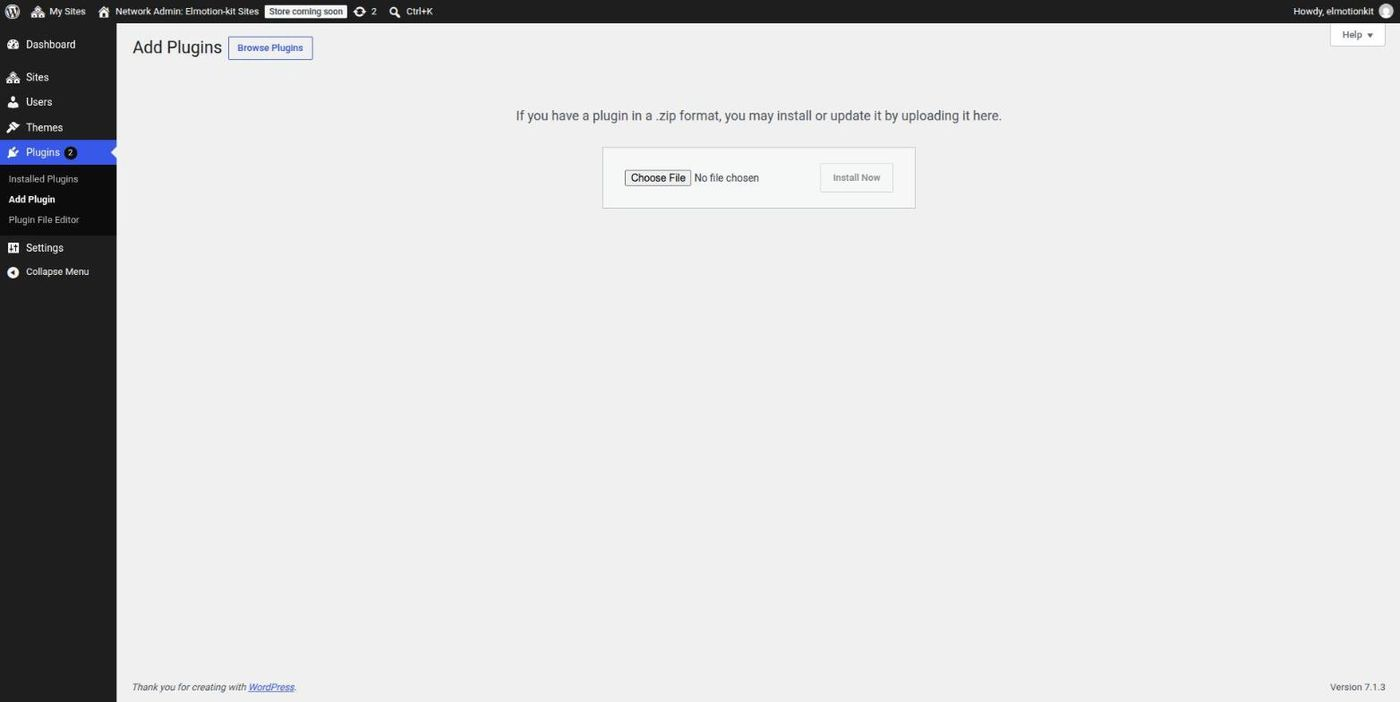
Upload the ZIP on the Add Plugins screen. -
Activate it
Click Activate Plugin on the next screen. JSON Media Editor now appears in your plugin list, with a shortcut called Open editor.
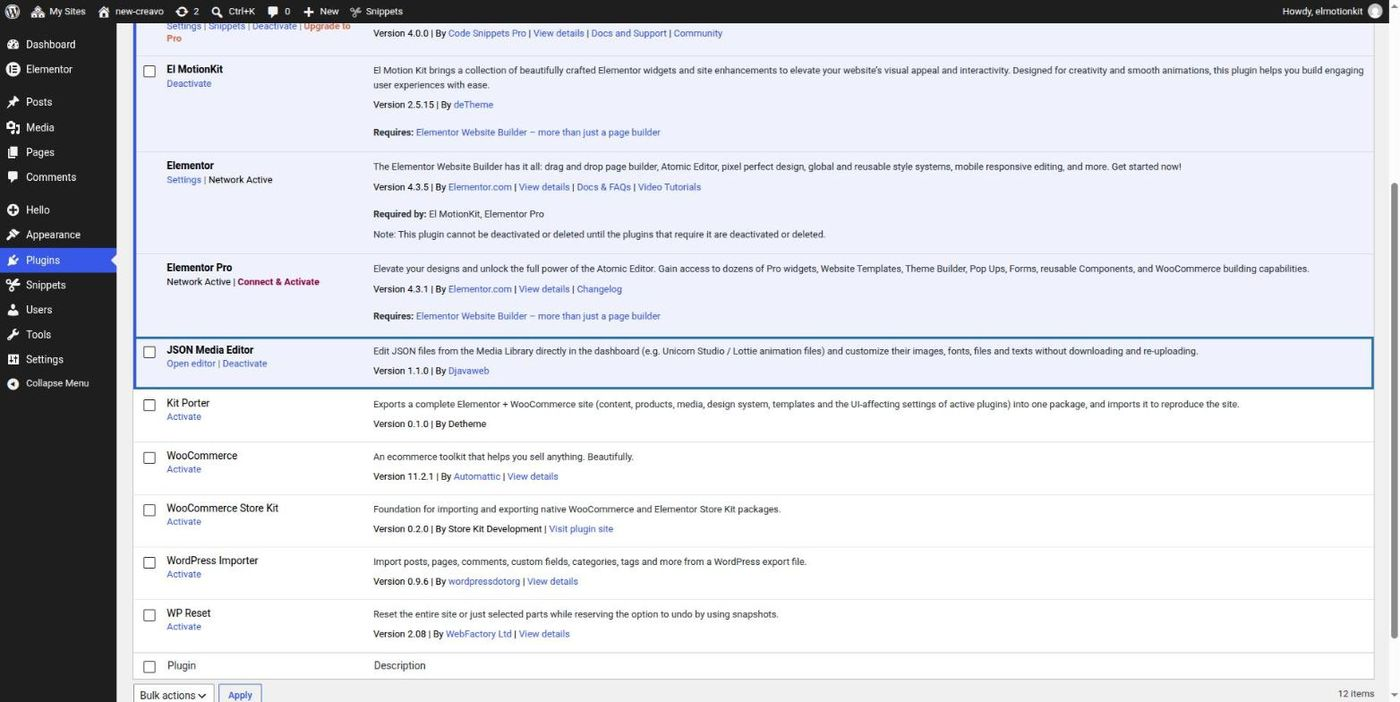
The plugin is active. Open editor takes you straight to it.
Updating from an older version?
Upload the new ZIP the same way. When WordPress asks, choose Replace current with uploaded. Your JSON files and backups are kept.
Using WordPress Multisite?
Upload the ZIP in Network Admin → Plugins, then activate it on the sites that need it. Each site edits its own files.
Open a JSON file
There are two ways to get to the editor.
-
Go to Media → JSON Editor
You'll see a list of every JSON file in your Media Library, and only JSON files. Click Select next to the one you want to edit.
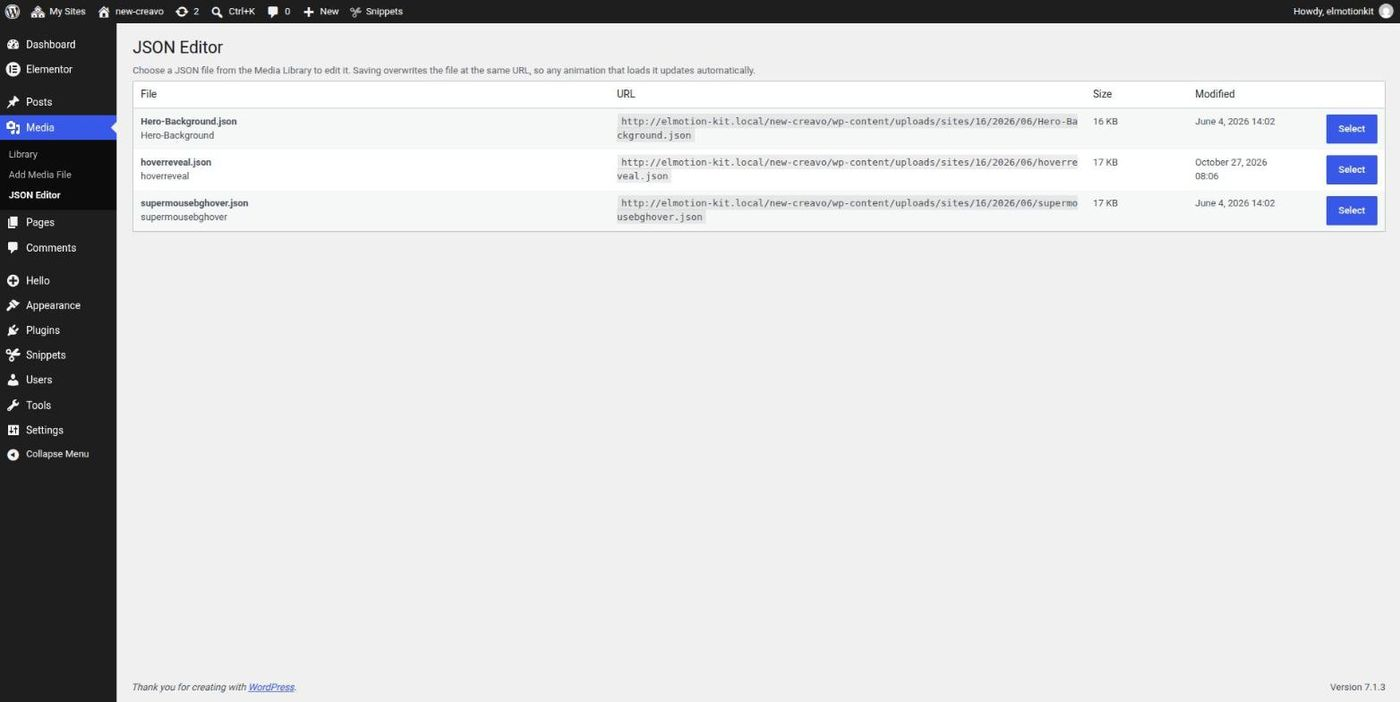
Pick the file that belongs to the animation you want to change.
-
Or use the link in the Media Library
In Media → Library, switch to the list view. Hover over a JSON file and click Edit JSON.
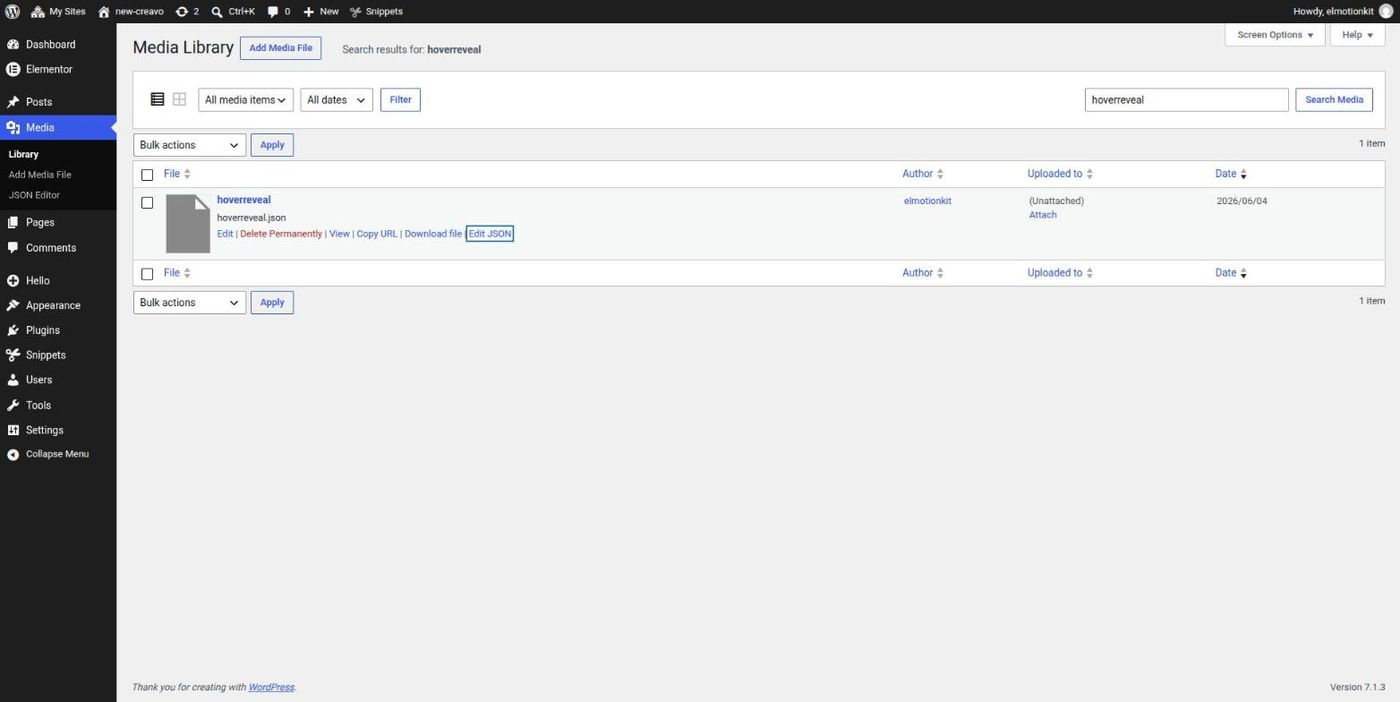
The Edit JSON link appears only on JSON files.
Change an image
The top of the editor, Customizable content, shows what you can change, grouped by layer. Images have a small preview.

-
Click Choose image
Your Media Library opens. Pick an image, or use Upload files to add a new one, then click Use this file.
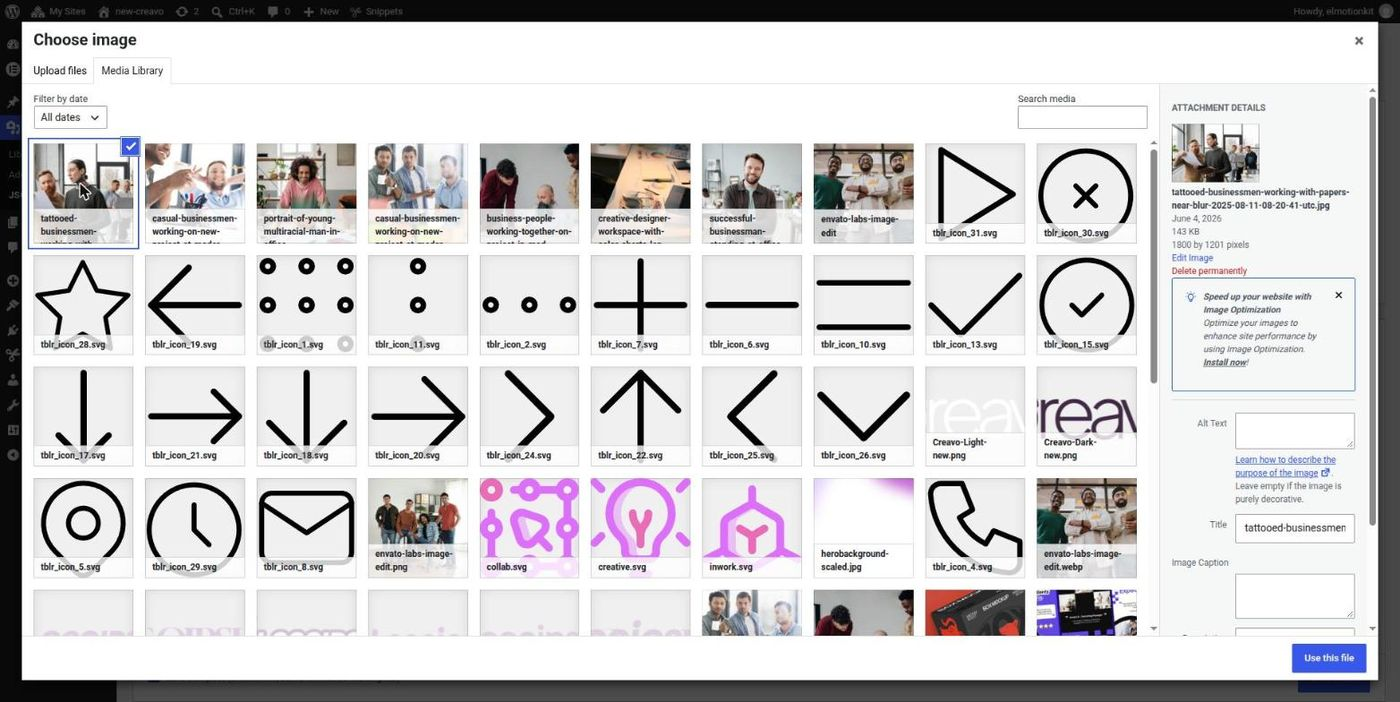
Choose any image from the Media Library. -
Check the preview
The preview and the address update right away. A message at the bottom reminds you that the change isn't saved yet.
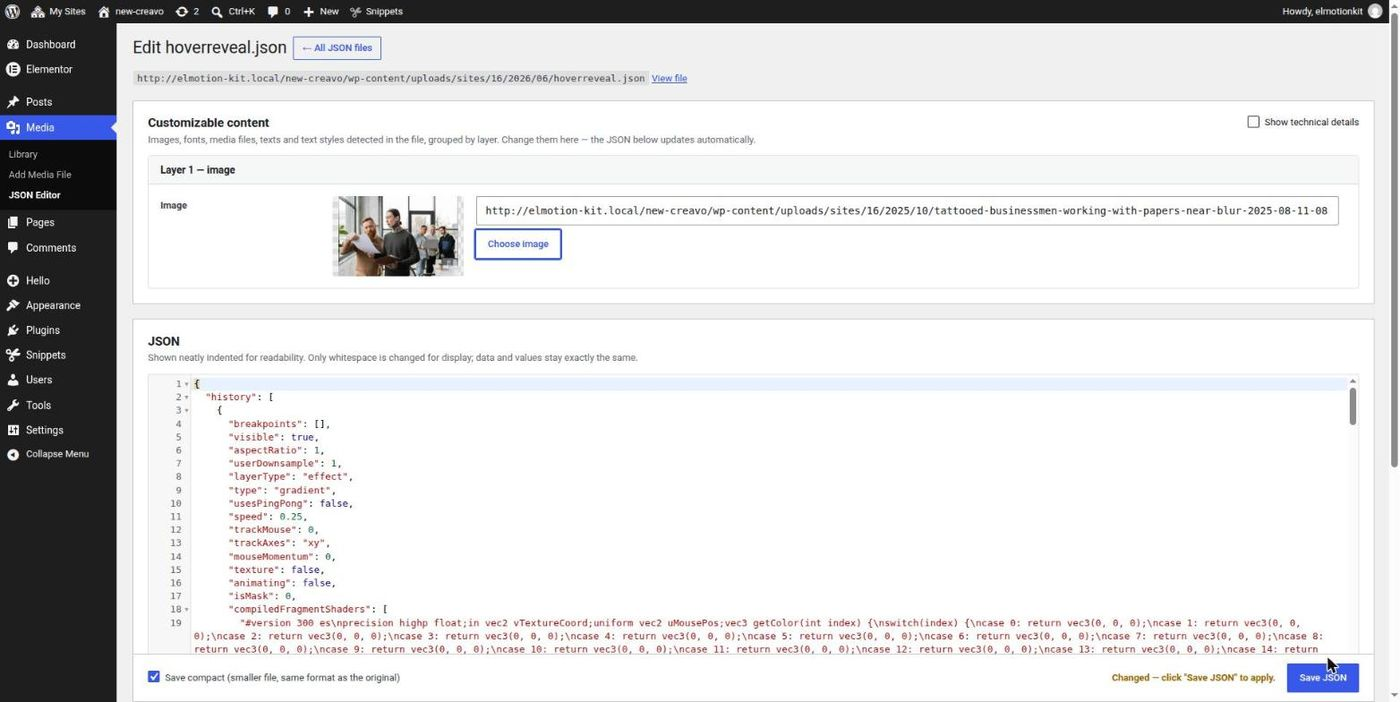
Changed, but not saved yet. -
Click Save JSON
That's it. See Save and check below.
Tip
Use an image with a similar shape (landscape or portrait) to the original, so the animation keeps its look.
Change text and font
If the animation has text, for example an animated heading, you can change the words, the font and the size.

-
Edit the text
Type new words in the Text field.
-
Change the font (optional)
Click Choose file next to Font file and pick or upload a font file.
.ttf,.otf,.woffand.woff2files are accepted.Below the preview, the plugin shows what's inside the file, for example Bold 700 · single weight.
-
Set the font family name
If you use a new font, type its name in Font family, for example
Poppins. Any name works, as long as it isn't used by another font on your site. -
Choose the weight and size
Use Weight to make the text thinner or bolder. Adjust Font size, Line height and Box width for each screen size if needed.

The result on the website: new text and font. The Box width was raised to 860 so the heading fits on two lines.
About font weight
A font file usually contains one weight only, for example Regular 400 or Bold 700. The plugin reads it from the file and tells you when your choice can't look as expected:
| You choose… | What happens |
|---|---|
| The same weight as the file | Best result. No message. |
| Thinner than the file | The text won't get thinner, unless the site loads a thinner version of the same font elsewhere. |
| Bolder than the file | The browser may fake the bold. It looks rougher, and all weights from 600 up look the same. |

For the best-looking bold text
Upload the bold file of your font, for example Poppins-Bold.ttf , and choose the same weight (Bold 700).
Sizes for each screen
Animations can use different text sizes on large and small screens. The editor groups the settings by where they're used, so you always know which screens a value affects:
| Group in the editor | Used on |
|---|---|
| Text style — all screens | Every screen size |
| Desktop (≥992px) | Laptops and desktops |
| Tablet & smaller (≤991px) | Tablets and phones |
Text suddenly on more lines?
A new font, text or weight can be wider than before. Make Box width larger, or Font size smaller, in the group for that screen. If you need an extra line, raise Box height so the text doesn't overlap what's below it.
Save and check
-
Click Save JSON
The button stays at the bottom of the screen while you scroll. A green message confirms the save.
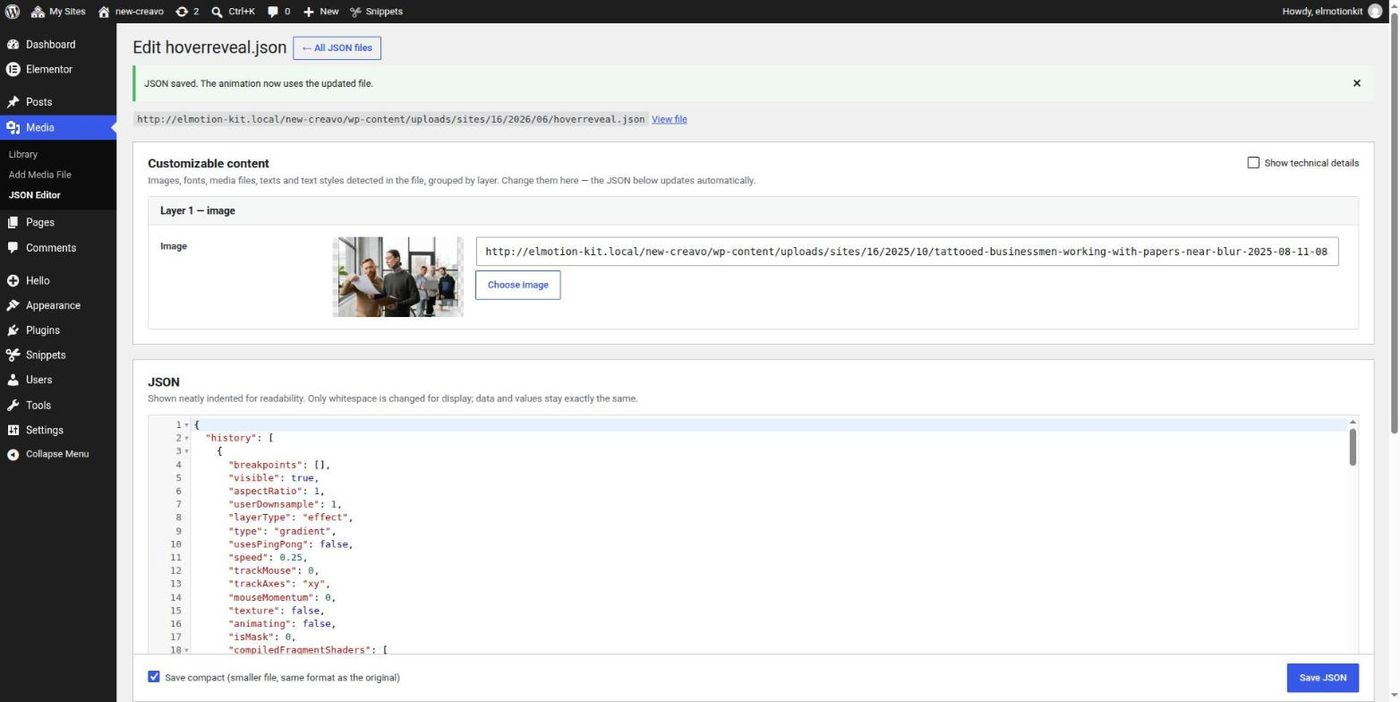
Saved. The animation now uses the updated file. -
Open your page and refresh it
The animation shows your changes. The plugin makes sure visitors get the new version and not an old copy saved in their browser.
Only Save writes the file
Your changes stay on your screen until you click Save JSON. If you leave the page first, nothing changes, and your browser warns you before you lose your edits.
Undo with backups
Every save keeps a copy of the previous version. The last 5 copies are listed at the bottom of the editor.
